Connect Claude to Liminary (MCP Server Setup)
Liminary is your AI's memory for what you actually know. By connecting Claude to the Liminary MCP server, you let Claude search and recall across your saved documents, notes, and meetings — and save or edit content in your library — directly from a conversation, with your permission.
This guide walks you through the one-time setup in the Claude desktop app. It takes about two minutes.
What you'll need
The Claude desktop app, signed in to your account.
A Liminary account (you'll sign in to it during setup).
The Liminary MCP server URL:
https://api.liminary.io/api/mcp/
Step 1 — Open Claude's settings
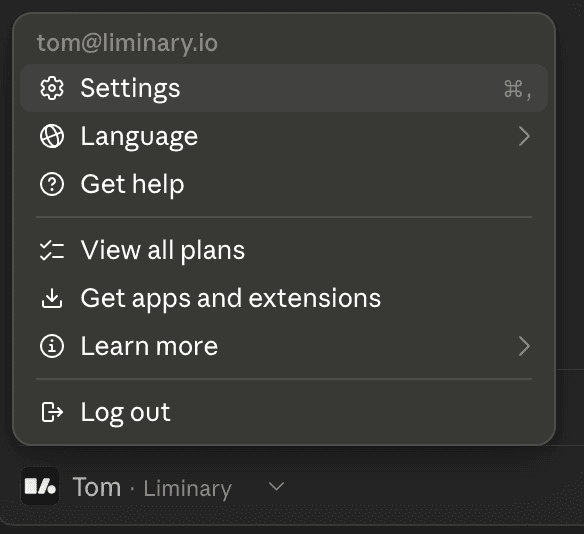
In the Claude desktop app, click your name in the bottom-left corner to open the account menu, then choose Settings.
Step 2 — Go to Connectors, then Customize
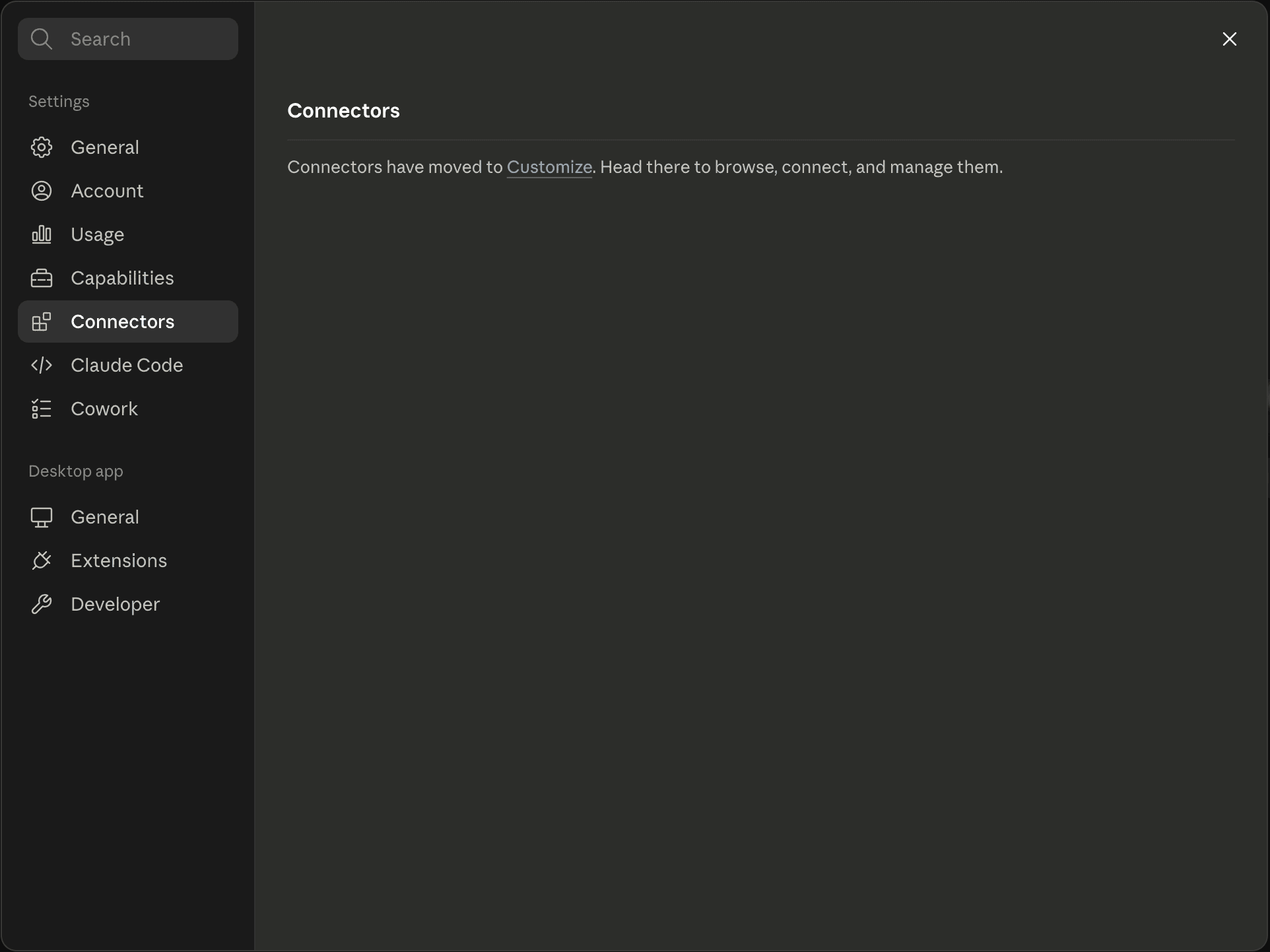
In Settings, open the Connectors tab. Connectors are now managed under Customize — click the Customize link to go there.
Step 3 — Add a custom connector
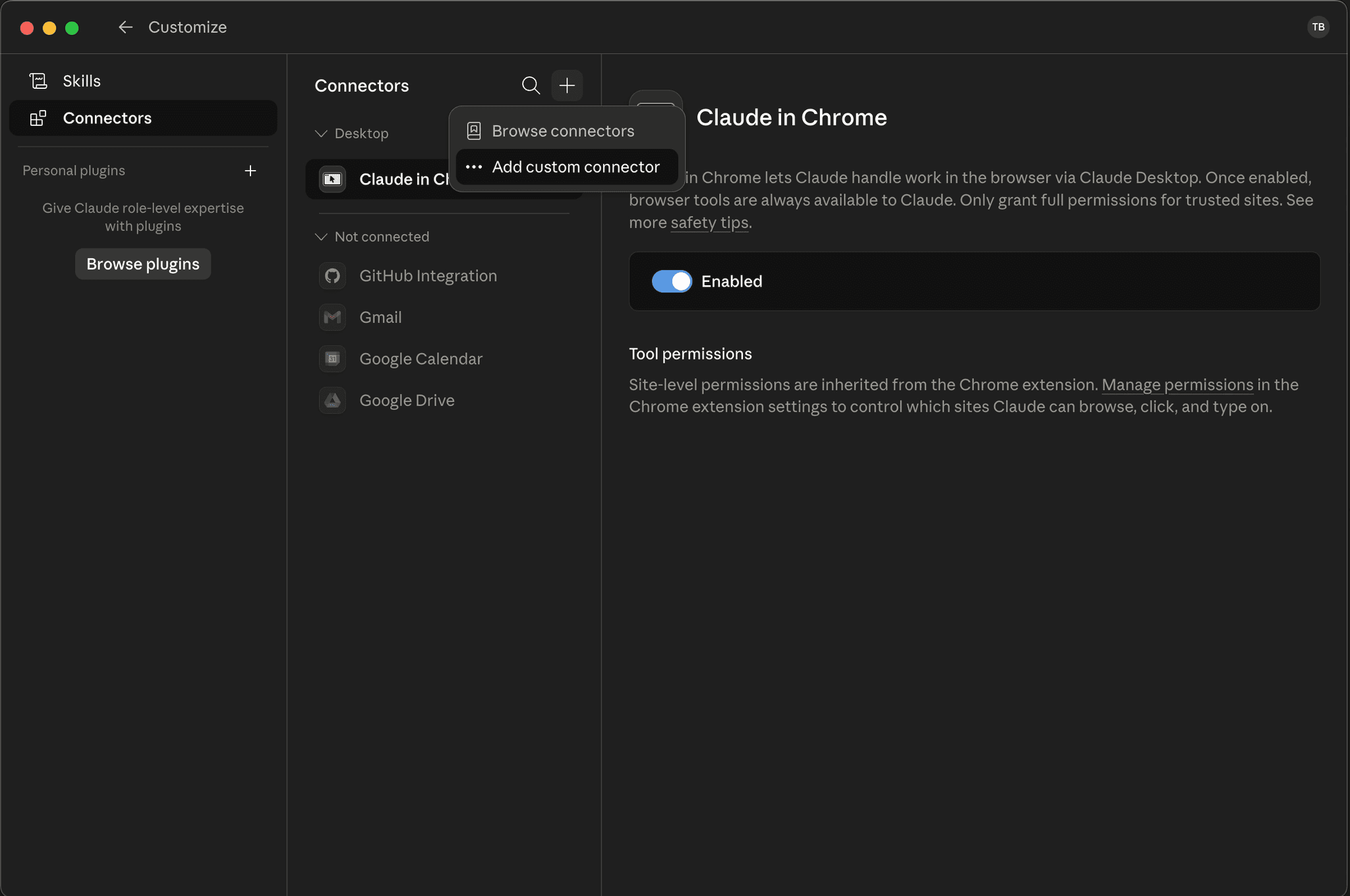
In the Customize → Connectors view, click the + button at the top of the connectors list and choose Add custom connector.
Step 4 — Enter the Liminary connector details
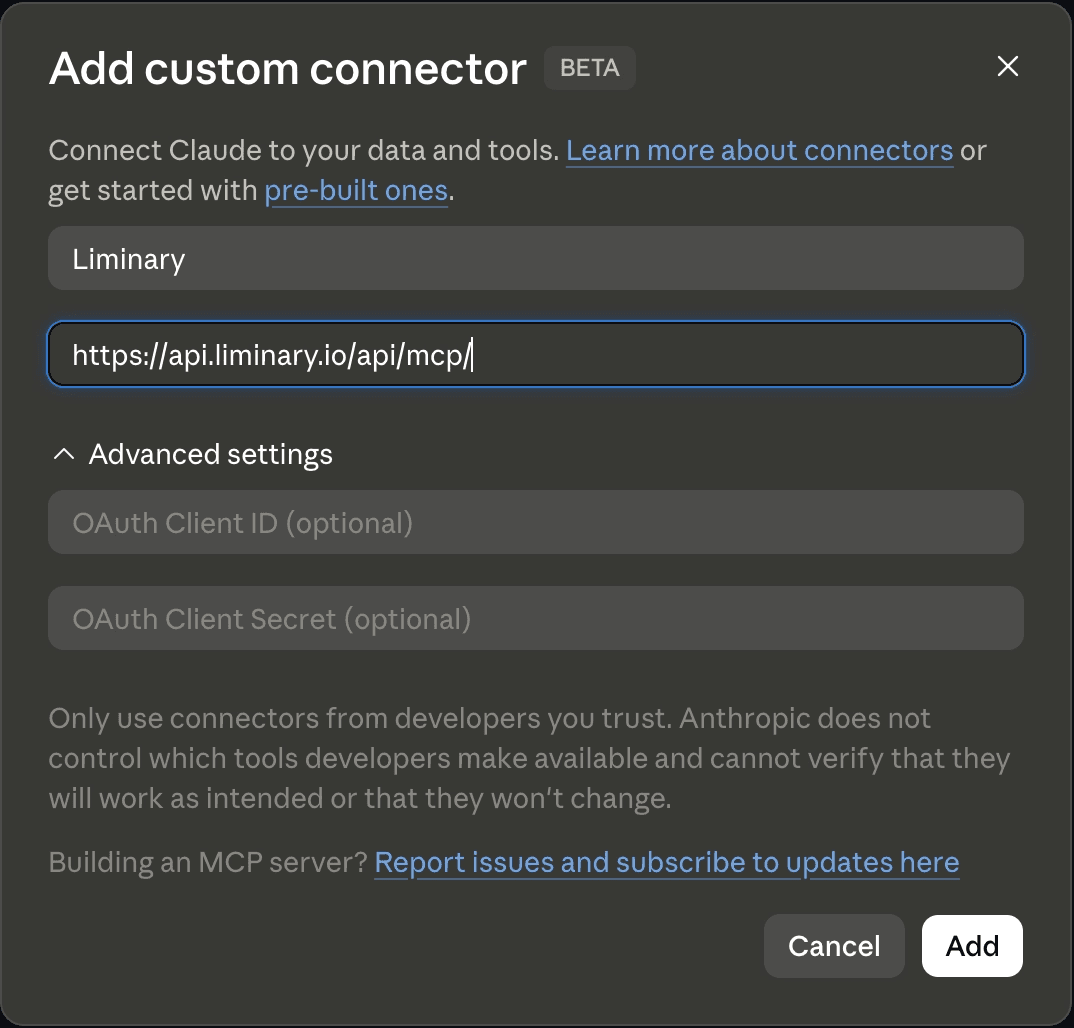
In the Add custom connector dialog:
Name:
LiminaryURL:
https://api.liminary.io/api/mcp/
You can leave the OAuth Client ID and Secret fields blank under Advanced settings. Click Add.
Step 5 — Connect
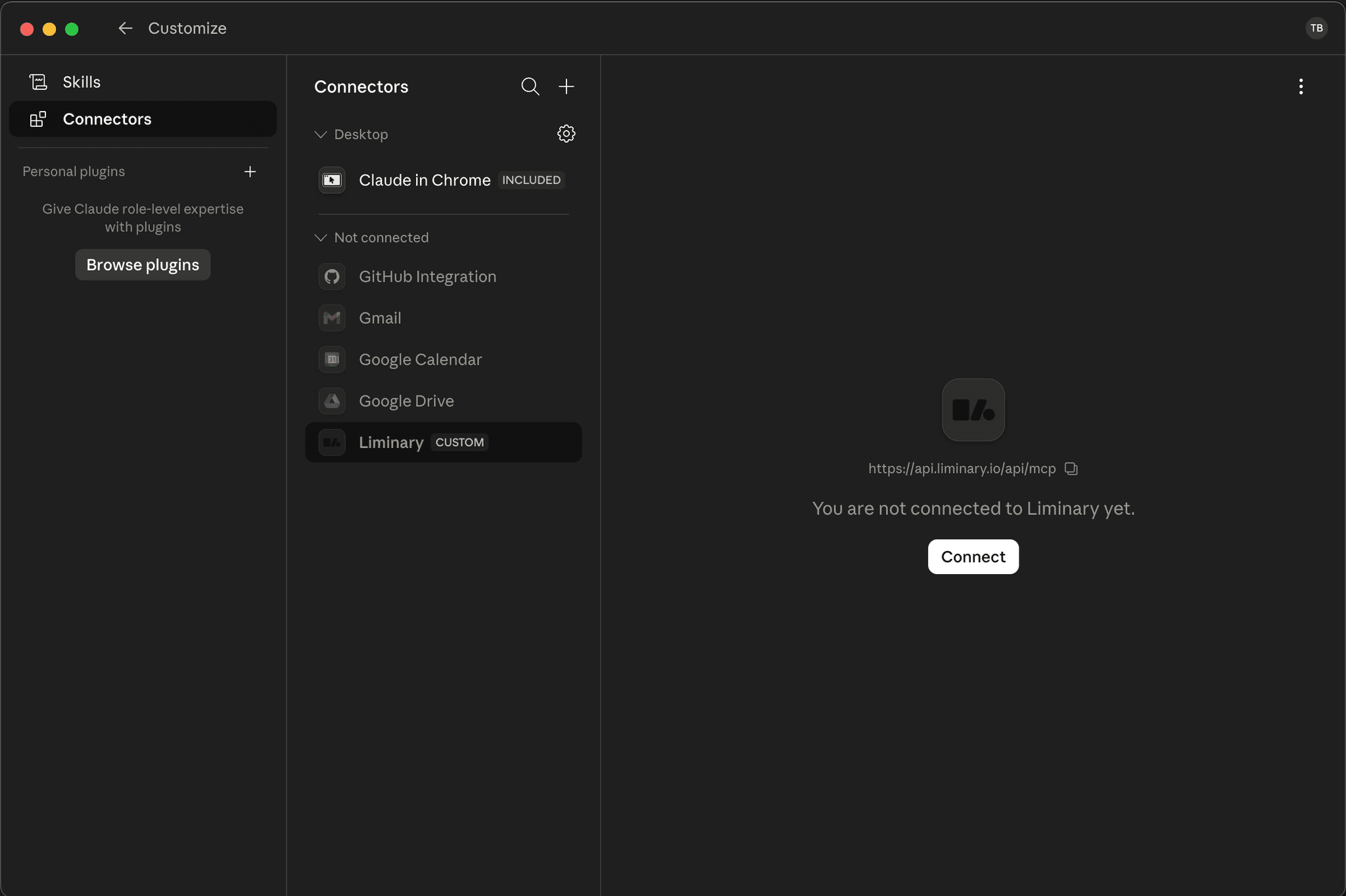
Liminary now appears in your connectors list, marked Custom, but it isn't connected yet. Select it and click Connect.
Step 6 — Authorize Claude
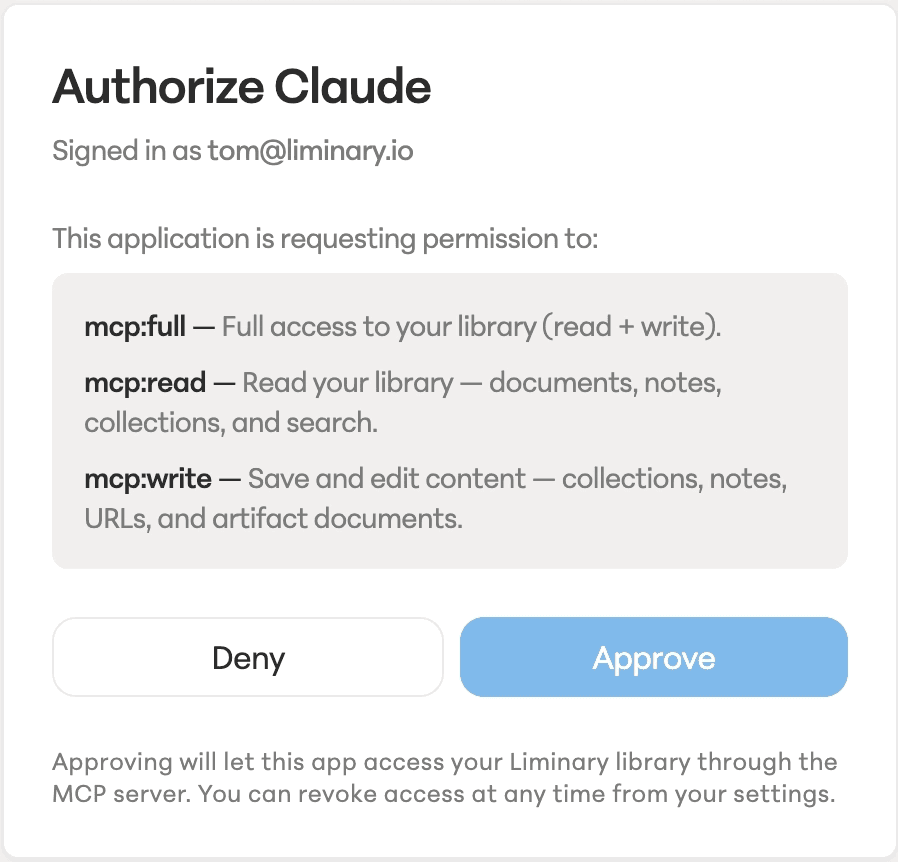
A Liminary authorization window opens, signed in as your Liminary account. It shows the access Claude is requesting:
mcp:full — full access to your library (read + write)
mcp:read — read your library: documents, notes, collections, and search
mcp:write — save and edit content: collections, notes, URLs, and artifact documents
Review the permissions and click Approve. You can revoke this access at any time from your Liminary settings.
Step 7 — Set tool permissions (optional)
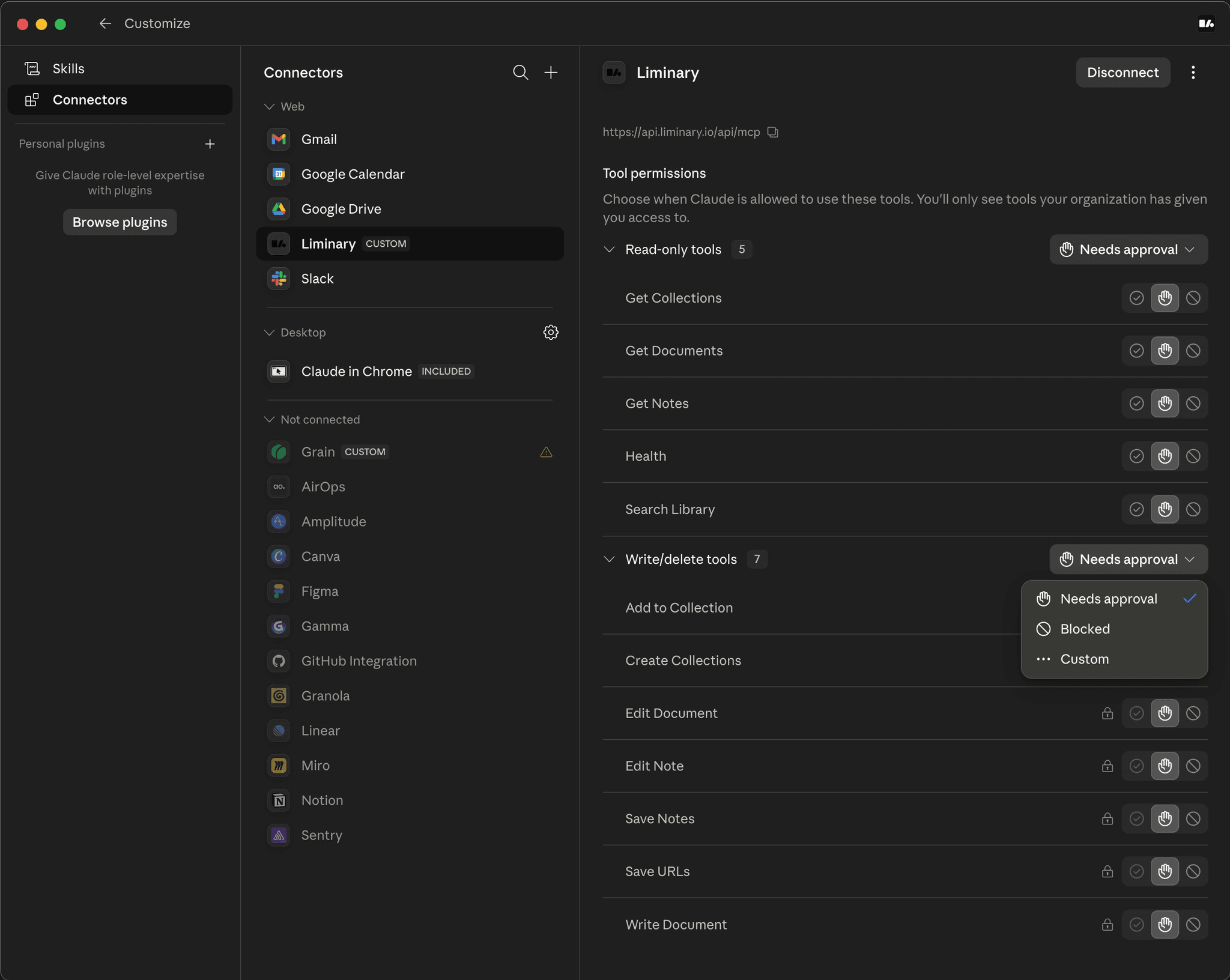
Back in Claude, you can fine-tune when Claude is allowed to use each Liminary tool. Read-only tools (Get Collections, Get Documents, Get Notes, Health, Search Library) and write/delete tools (Add to Collection, Create Collections, Edit Document, Edit Note, Save Notes, Save URLs, Write Document) can each be set to Needs approval, Blocked, or a Custom rule.
Leaving write actions on Needs approval is a good default — Claude will ask before changing anything in your library.
Step 8 — Try it out
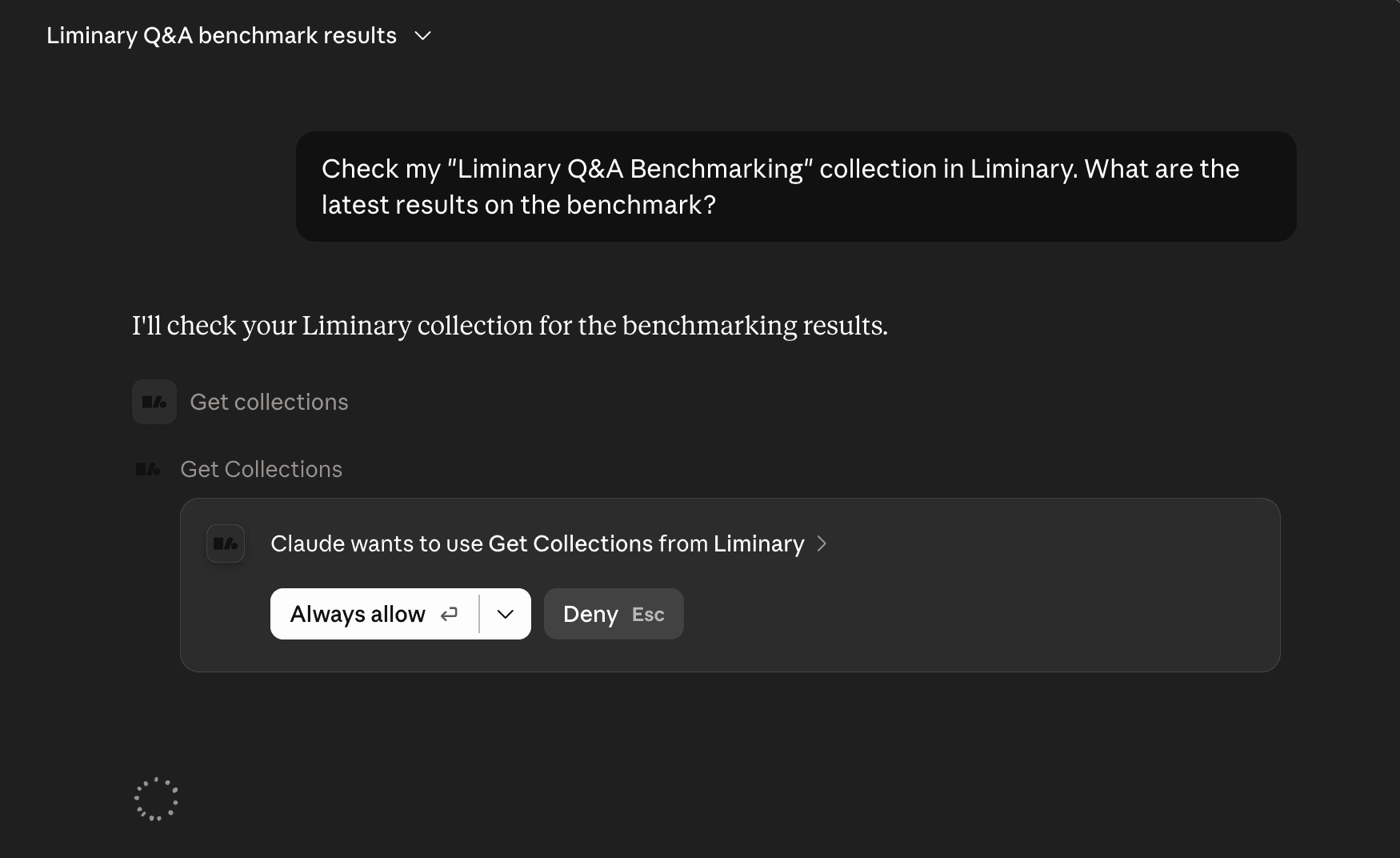
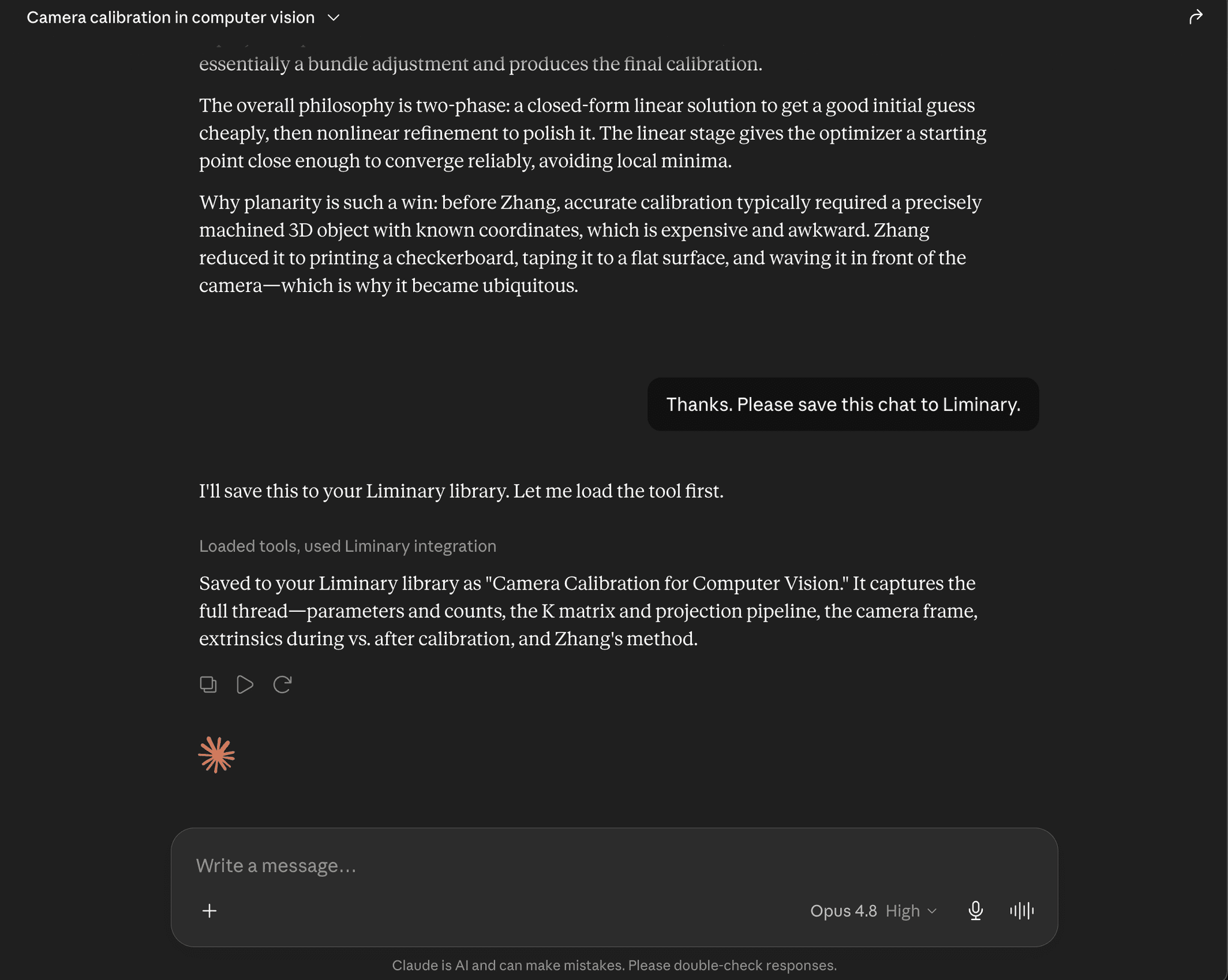
Start a new conversation and ask Claude about something in your Liminary library. The first time Claude uses a Liminary tool, it asks for your permission — choose Always allow to skip the prompt next time, or Allow once.
Step 9 — You're connected
Claude can now use your Liminary library, answering questions based on your sources, and adding to your library when you ask it to. You're all set.
Tips & troubleshooting
Re-authorizing: If Claude stops returning results, open the Liminary connector in Customize → Connectors and reconnect.
Permissions: If Claude isn't allowed to save or edit, check the tool permissions in Step 7 — write/delete tools may be set to Blocked.
URL: Make sure the server URL is exactly
https://api.liminary.io/api/mcp/